
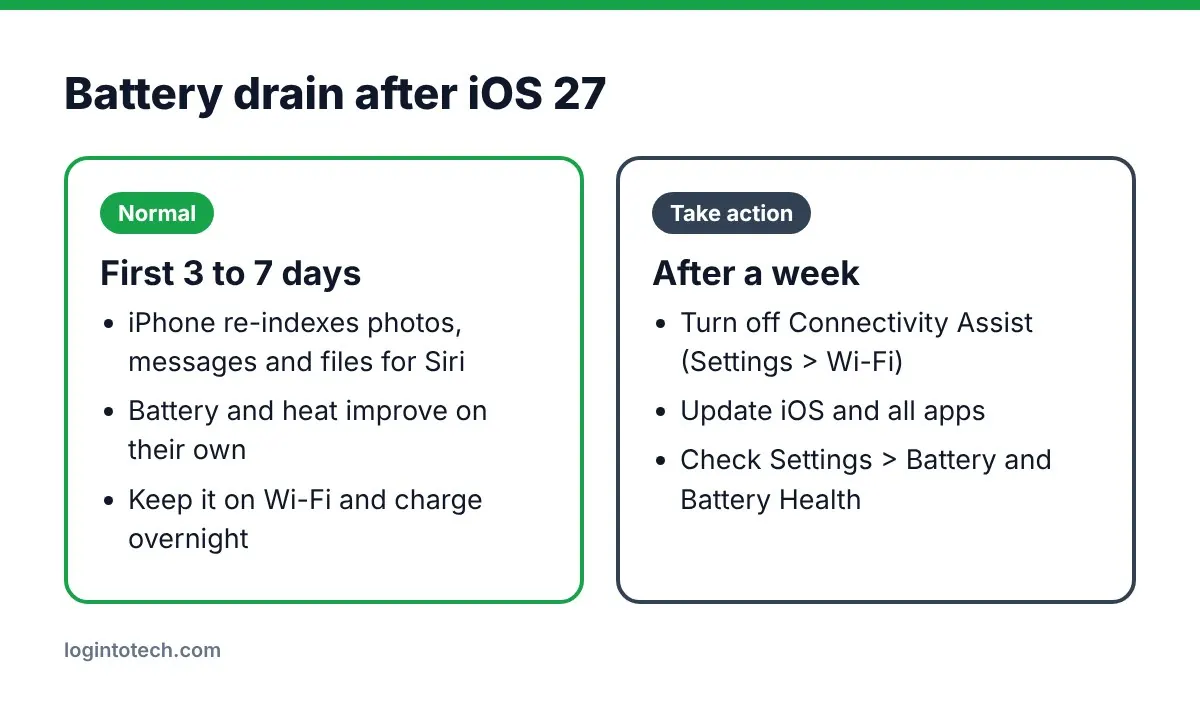
If your iPhone battery started draining faster after updating to iOS 27, there are usually two causes. For the first few days, the iPhone is re-indexing your photos, messages and files in the background, which uses extra power and goes away on its own. If the drain continues after a week, a new iOS 27 setting called Connectivity Assist is a common culprit, and you can turn it off in Settings > Wi-Fi.
Last updated: 29 November 2026.
Why iOS 27 drains your battery after updating
Every major iOS update makes your iPhone do a lot of work in the background: re-indexing photos and files, rebuilding search and Siri data, and updating apps. With iOS 27 this is heavier than usual, because the iPhone has to re-index your content for the new Siri features. 9to5Mac reports that this can take several days, and that battery life returns to normal once it finishes.
So the first rule is simple: give it 3 to 7 days, keep the iPhone on Wi-Fi and charge it overnight so the background work can finish.
1. Turn off Connectivity Assist
In iOS 27, Wi-Fi Assist was replaced by Connectivity Assist. According to Tom’s Guide, it is more aggressive than before and can use mobile data alongside Wi-Fi, which keeps both radios busy and drains the battery faster.
To turn it off everywhere:
- Open Settings and tap Wi-Fi.
- Scroll to the bottom.
- Turn off Connectivity Assist.
To turn it off for one network only, tap the i icon next to the network in Settings > Wi-Fi, scroll down, and turn off Use Connectivity Assist.
2. Check which apps use the most battery
- Go to Settings > Battery.
- Look at the list of apps under the chart. Tap Show Activity to see screen time and background time.
- If an app uses a lot of battery in the background, update it from the App Store, or limit it with the steps below.
3. Update to the latest iOS 27 version
Apple fixes bugs in point updates. iOS 27.0.1, released on 28 September 2026, fixed unexpected restarts on iPhone 18 Pro models and an unresponsive touchscreen bug. Go to Settings > General > Software Update and install any update that is available.
4. Update all your apps
Apps that are not yet optimised for iOS 27 can crash or run in the background more than they should. Open the App Store, tap your profile picture, and tap Update All.
5. Limit Background App Refresh
Go to Settings > General > Background App Refresh. Turn it off for apps that do not need fresh content when you open them, such as games and shopping apps. Keep it on for messaging and email apps.
6. Turn off Location Services for apps that do not need it
- Go to Settings > Privacy & Security > Location Services.
- Tap each app and choose While Using the App or Never.
- Avoid Always unless the app really needs it, such as a navigation app.
7. Reduce screen brightness and use Auto-Lock
The display is one of the biggest battery users. Turn on Auto-Brightness in Settings > Accessibility > Display & Text Size, and set Settings > Display & Brightness > Auto-Lock to 30 seconds or 1 minute. On iPhone Pro models, consider turning off Always On Display in the same menu.
8. Use Low Power Mode when you need it
Open Control Center and tap the battery icon, or go to Settings > Battery > Low Power Mode. It pauses background tasks and reduces visual effects until you charge the iPhone.
9. Restart your iPhone
A restart clears stuck background processes. Press and hold the side button and either volume button, then drag the slider. Wait 30 seconds and turn the iPhone back on.
10. Check your battery health
If none of the above helps, the battery itself may be worn. Go to Settings > Battery > Battery Health (or Battery Health & Charging). If Maximum Capacity is below 80%, Apple recommends a battery replacement.
When to contact Apple
If your battery still drains quickly after a week, all updates are installed, and Battery Health looks normal, contact Apple Support or visit an Apple Store. As a last step, you can back up the iPhone and set it up as new, which removes settings and apps that may be causing the drain.
FAQ
Is battery drain after iOS 27 normal?
Yes, for the first few days. The iPhone is indexing your content in the background. It should improve within about a week.
Should I turn off Connectivity Assist?
If you have reliable Wi-Fi, turning it off is safe and can save battery and mobile data. You lose the automatic switch to mobile data when Wi-Fi is weak.
Will downgrading to iOS 26 fix the battery?
Apple usually stops allowing downgrades a few weeks after a release, and downgrading can erase data. Updating to the latest iOS 27 version is the better fix.
Related guides: iPhone storage full: 12 ways to free up space · More iOS guides